Move Windows to a new SSD without reinstalling.
NicoVault Disk Cloner copies your disk – Windows, programs, files and the boot setup – to a new SSD, NVMe or hard disk, checks every block it wrote, and makes the new disk start just like the old one.
✓ Signed installer✓ No ads or toolbars✓ Uninstall anytimeWhat setup installs ↓
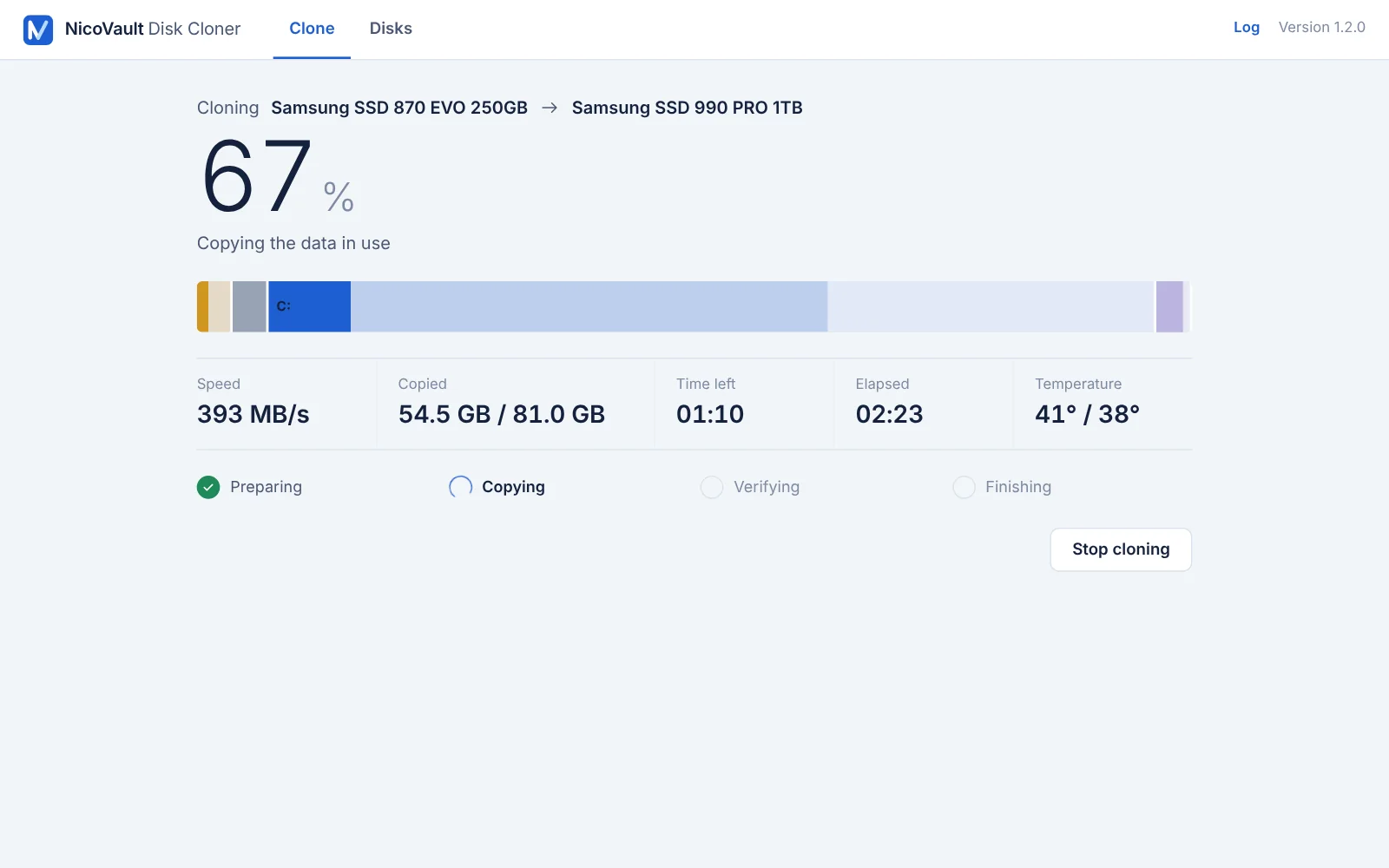
250 GB SSD → 1 TB NVMe. The boot and recovery partitions are copied as they are; C: grows to use the whole new disk.
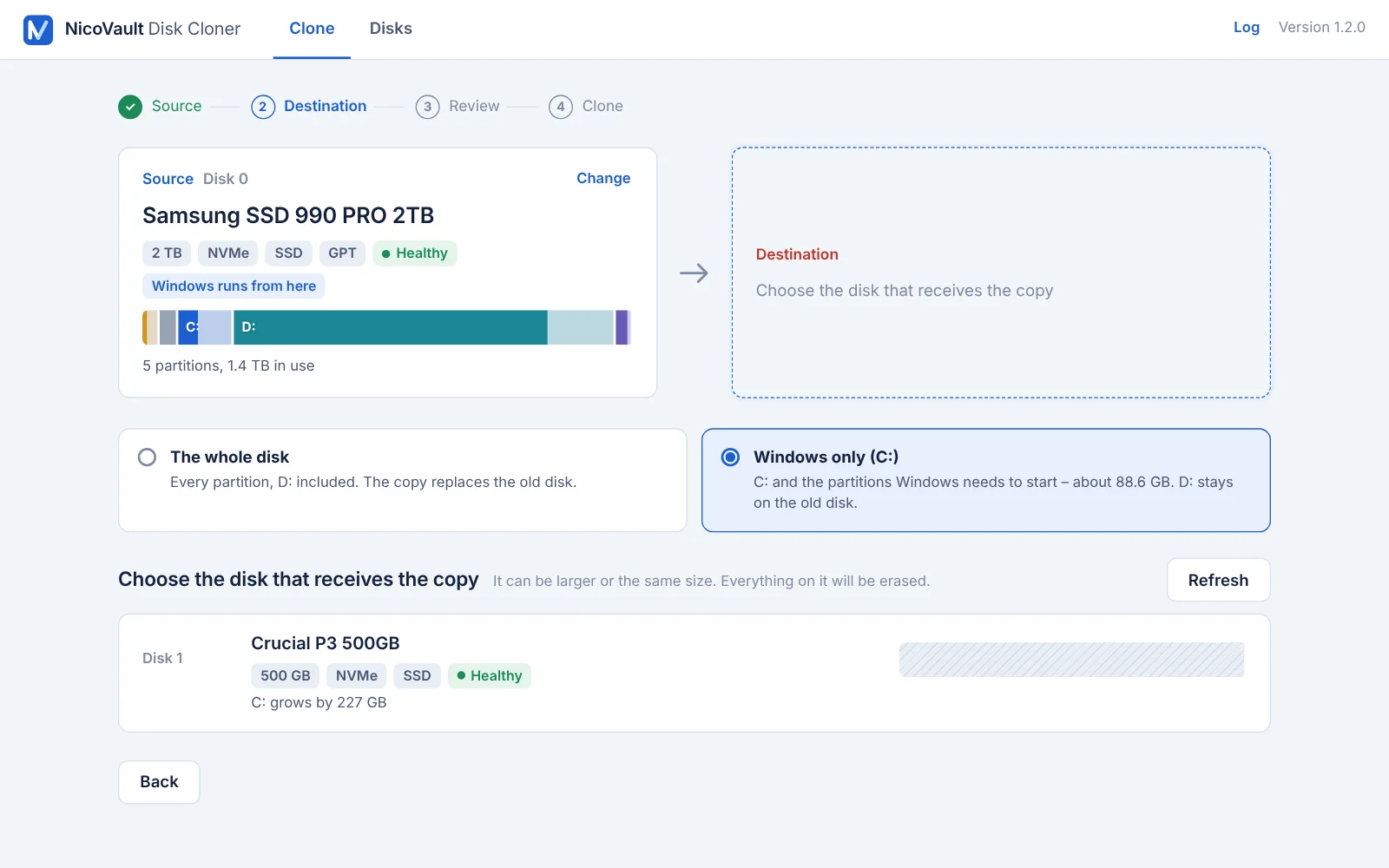
Three choices, then it runs on its own.
- Choose the disk to copy
Usually the one Windows runs from. It is only read: nothing on it changes.
- Choose the new disk
Larger, the same size, or smaller if your data fits. Copy the whole disk, or only Windows and leave D: where it is.
- Review and clone
Both disks side by side, and exactly what will happen. Then the copy runs, is verified, and the new disk is ready to start.
Built for the day a disk has to be replaced.
When an SSD starts wearing out, or simply runs out of space, the clone has to work the first time. Everything in Disk Cloner is there for that.
Copies only what's in use
Empty space is skipped, so 90 GB of Windows on a 1 TB disk takes minutes, not hours. On SSD and NVMe it reads and writes at the same time.
Verifies every block
After copying, everything is read back from the new disk and compared with the original. “Verification completed successfully” means exactly that.
Fits the new disk
On a larger disk C: grows to use all the space and the recovery partition moves to the end. On a smaller one it tells you exactly how much to shrink C: first.
Starts like the old disk
The copy keeps the disk's identity, the boot setup and the drive letters, and Windows is prepared to start from SATA or NVMe.
Windows only
C: and a large D: on one disk? Copy just Windows to a small SSD and leave D: where it is. The copy gets its own identity and starts on its own.
Safe by design
The source is only read. The destination is checked by serial number before anything is written, and a stopped or failed clone leaves it empty – never half-finished.
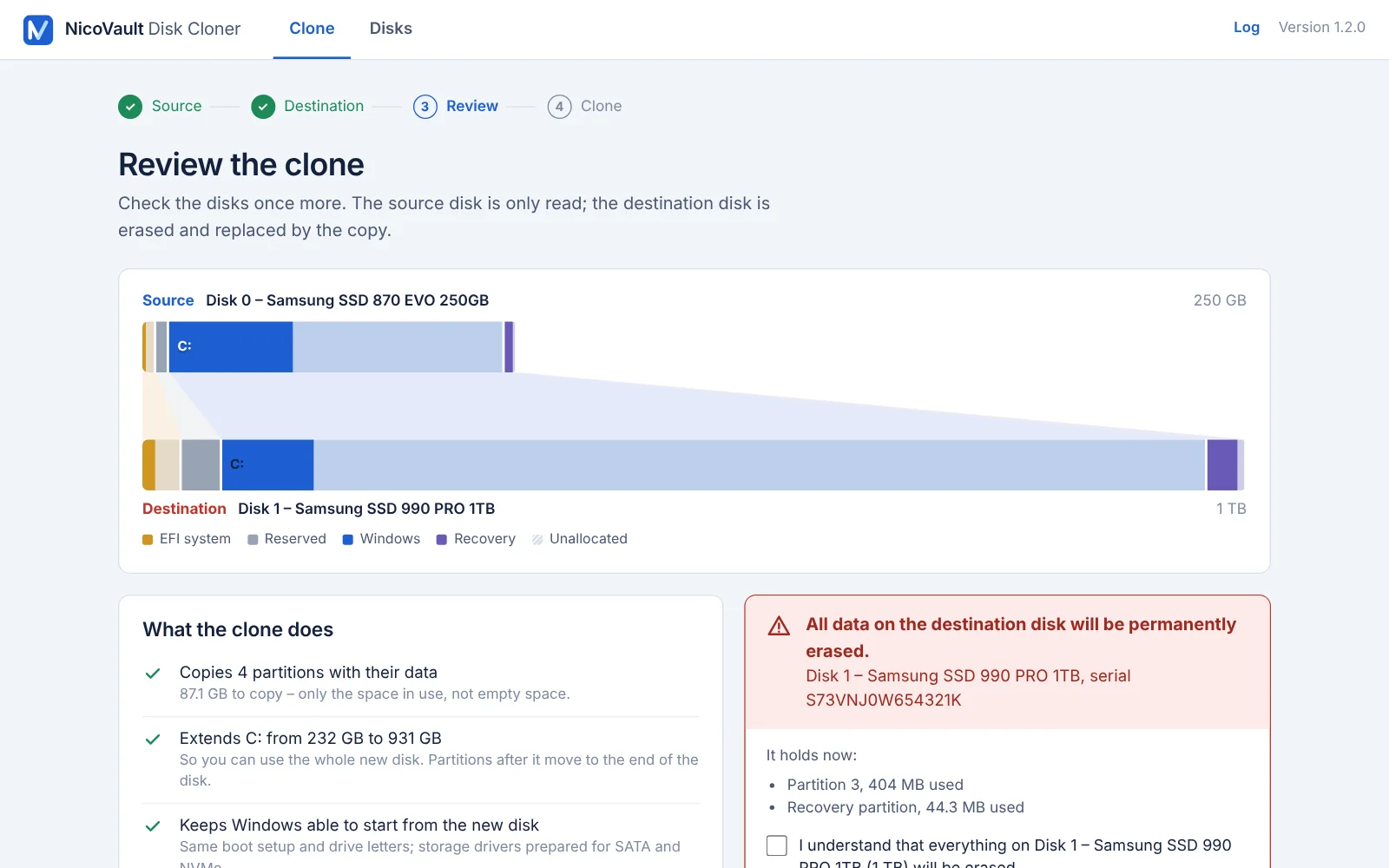
See the whole clone first.
The review shows both disks to scale, partition by partition, and what happens to each one.
- The destination named by model and serial number
- “All data on the destination disk will be permanently erased” – and nothing starts until you confirm
- Disks Windows runs from can never be chosen as the destination
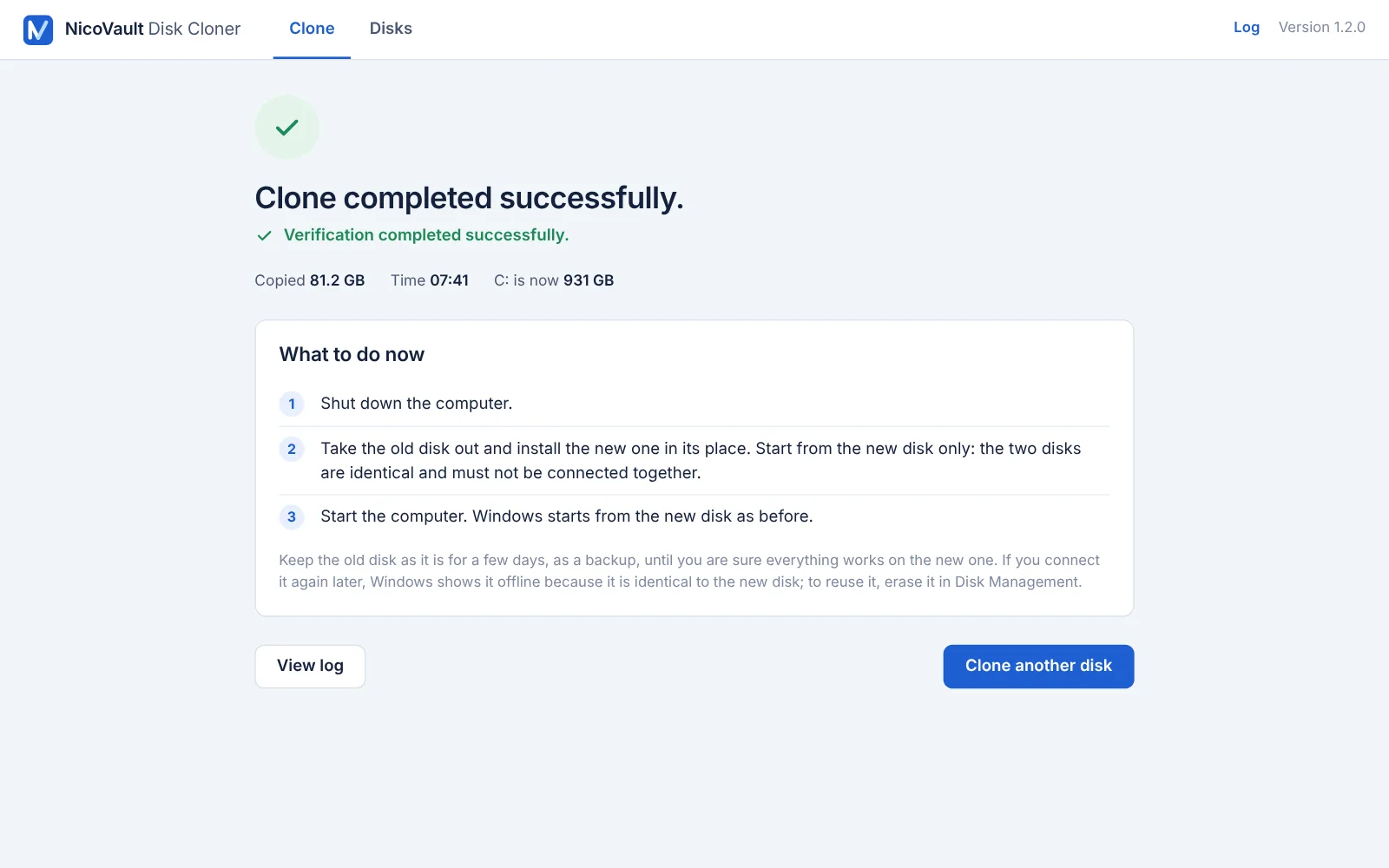
Clear results, in plain words.
“Clone completed successfully” and “Verification completed successfully”, then what to do next, step by step.
- How much was copied and how long it took
- If something goes wrong: what happened and how to fix it, never an error code alone
- The full technical log, one click away
Free to try. Pay once to clone.
The free version does everything up to the start of the clone, and clones up to 5 GB of data – enough to try it on a USB stick. A license removes the limit. Prices in euro.
Free
To try it and check your disks.
- Choose the disks and see the full review
- Clones up to 5 GB of data
- Disk health and details
- Cloning Windows needs a license
Personal
For your own computers.
- Up to 3 of your computers
- Every clone, no size limit
- All 1.x updates
- Moves with you to a new computer
Technician
For IT services and repair shops.
- Unlimited computers, customers' included
- Every clone, no size limit
- All updates while subscribed
- Priority e-mail support
Personal: pay once and use it for good, with every 1.x update. Technician: yearly; if it isn't renewed, the program goes back to the free version. The license key arrives by e-mail and is separate from NicoVault Backup licenses. If it cannot clone your disk, you get your money back within 14 days (refund policy).
Frequently asked questions
Will the new disk start Windows?
Yes. A whole-disk copy keeps the boot setup and the identity of the original disk, so Windows starts from it as before. Shut down, take the old disk out, put the new one in its place and switch on.
Do I have to take the old disk out?
Yes, at least for the first start. After a whole-disk copy both disks are identical, and Windows could start from the wrong one. Keep the old disk for a few days as a backup; to reuse it later, erase it in Disk Management.
Can I clone to a smaller SSD?
Yes, when your data fits. If the partitions are larger than the new disk, Disk Cloner tells you exactly how much to shrink C: in Disk Management first. Or choose “Windows only” and leave D: on the old disk.
My SSD is wearing out. Will it help?
Clone it as soon as you can. The copy is taken from a snapshot while Windows runs, and every block is checked. If part of the old disk can no longer be read at all, the clone stops and tells you where, so you never get a copy with silent holes; copy your most important files first in that case.
What can I do with the free version?
Everything up to the start of the clone: choose the disks, see the full review and the disk health page. Clones of up to 5 GB of data run for free, so you can try it on a USB stick. Cloning Windows needs a license.
Can I get my money back?
Yes, if Disk Cloner cannot clone your disk and we can't solve it together: write to us within 14 days of purchase. Once a clone has been completed with your license, the purchase is final – so try everything for free first: the full review and a test clone of up to 5 GB.
Is it the same license as NicoVault Backup?
No. Disk Cloner is a separate program with its own license key, which starts with DC-. NicoVault Backup keys don't work in Disk Cloner, and Disk Cloner keys don't work in Backup.
SATA to NVMe, hard disk to SSD?
Yes: SATA SSDs, NVMe and hard disks, GPT (UEFI) and MBR (BIOS). Windows on the copy is prepared to start on SATA or NVMe. Both disks need the same sector size; some USB adapters change it, so connect the new disk directly if the program says so.
Does it work with BitLocker?
Yes, while the drive is unlocked. The copy is made from the unlocked data, so it is not encrypted; turn BitLocker on again on the new disk.
On how many computers can I use it?
Personal: up to 3 of your own computers. Changing computers? License → Remove from this computer, then activate it on the new one; a removed computer keeps its place for 30 days. Technician: as many as you need, your customers' included.
Windows says “Windows protected your PC”. Is it safe?
Yes. The installer is digitally signed with a Certum code-signing certificate (publisher: Geanina-Elena Sava-Mimbler). Because the program is new, SmartScreen may still warn about it for a while: click More info → Run anyway.
Free to download, ready in a minute.
An ordinary Windows setup. Everything up to the start of the clone is free; enter a license key whenever you're ready.
Signed installer. Setup installs Disk Cloner to Program Files, adds Start menu and desktop shortcuts and, only if it is missing, the free Microsoft Edge WebView2 Runtime from Microsoft, which draws the window. Nothing else: no other software, no ads, no startup entries. The source disk is only read; the target disk is overwritten only after you confirm. Uninstall anytime: Windows Settings → Apps → Installed apps → NicoVault Disk Cloner · Terms · Privacy
| System | Windows 10 / 11 (64-bit) |
| Disks | SATA SSD, NVMe, hard disk; GPT (UEFI) or MBR (BIOS) |
| Size | ≈ 6 MB |
| Version | 1.2.1 · 02.11.2026 |
| SHA-256 |
The installer is digitally signed (Certum certificate, publisher: Geanina-Elena Sava-Mimbler). Windows may still show “Windows protected your PC” for a while: click More info → Run anyway. Installation guide