New PC? Bring your files, apps and settings with you.
NicoVault PC Migrator moves your programs, files and settings from the old PC to the new one. Open it on both, connect them over your network – or attach the old PC’s disk or an external drive – tick what you want, and press Start. The old PC is only read.
✓ Signed installer✓ No ads or toolbars✓ Uninstall anytimeWhat setup installs ↓
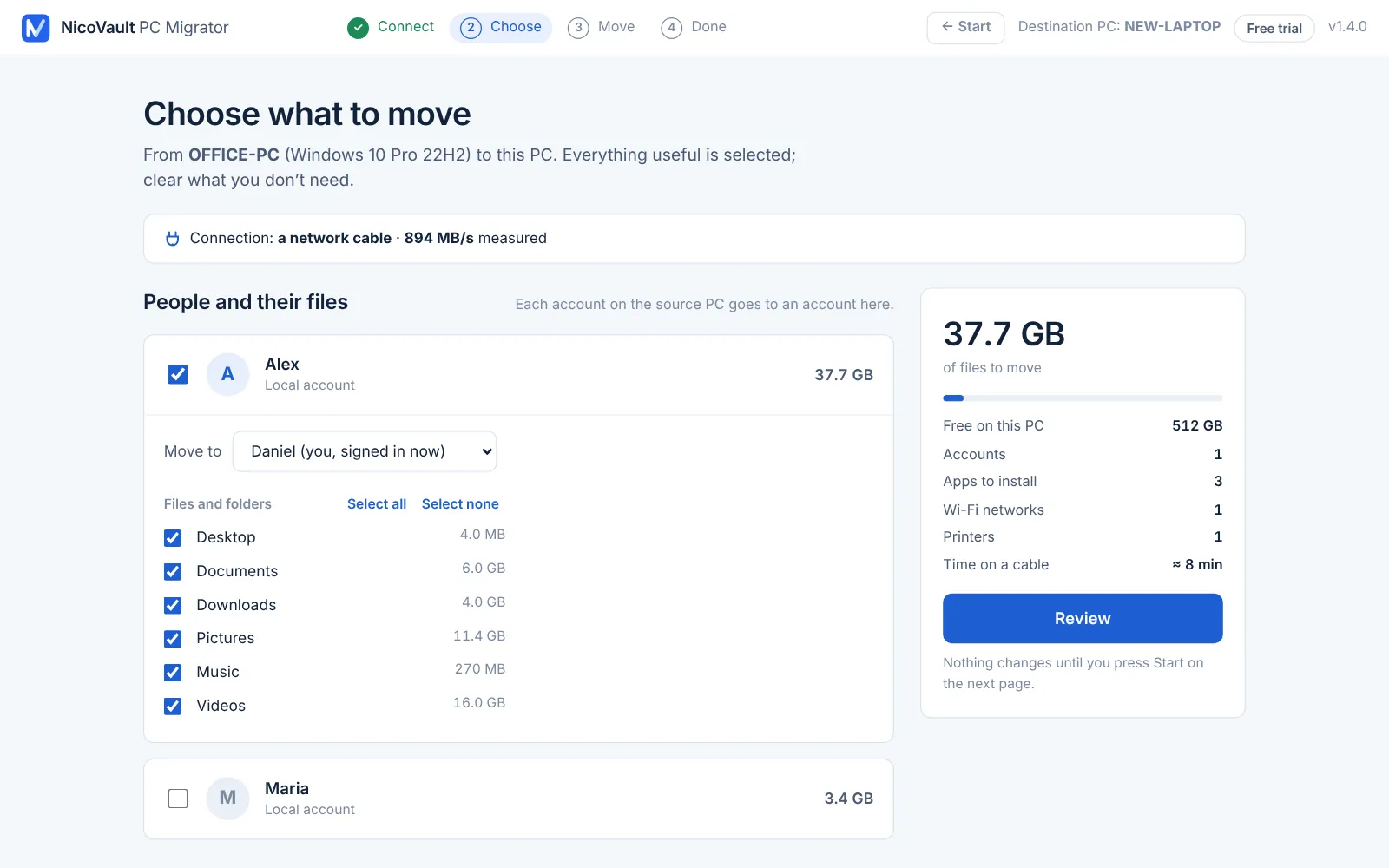
From the Source PC to the Destination PC. Straight from one computer to the other on your local network, encrypted – nothing passes through the internet, and nothing is uploaded to us.
You see the whole list, with sizes, before anything is written to the new PC.
Open it on both PCs, pick what to move, press Start.
- Install it on the old PC and on the new one
The same program on both. On the old PC choose Source PC; on the new one, Destination PC. The new PC finds the old one on your network and asks for the 6-digit code shown there.
- Tick what you want on the new PC
Accounts and their folders, browser data, apps, Wi-Fi networks, printers, folders from other drives – each with its size. Everything useful is ticked; clear what you don’t need.
- Review and press Start
Nothing is written before that. Files are copied, apps are installed in the background, settings are applied – and a report on the desktop says what was done and what is left for you.
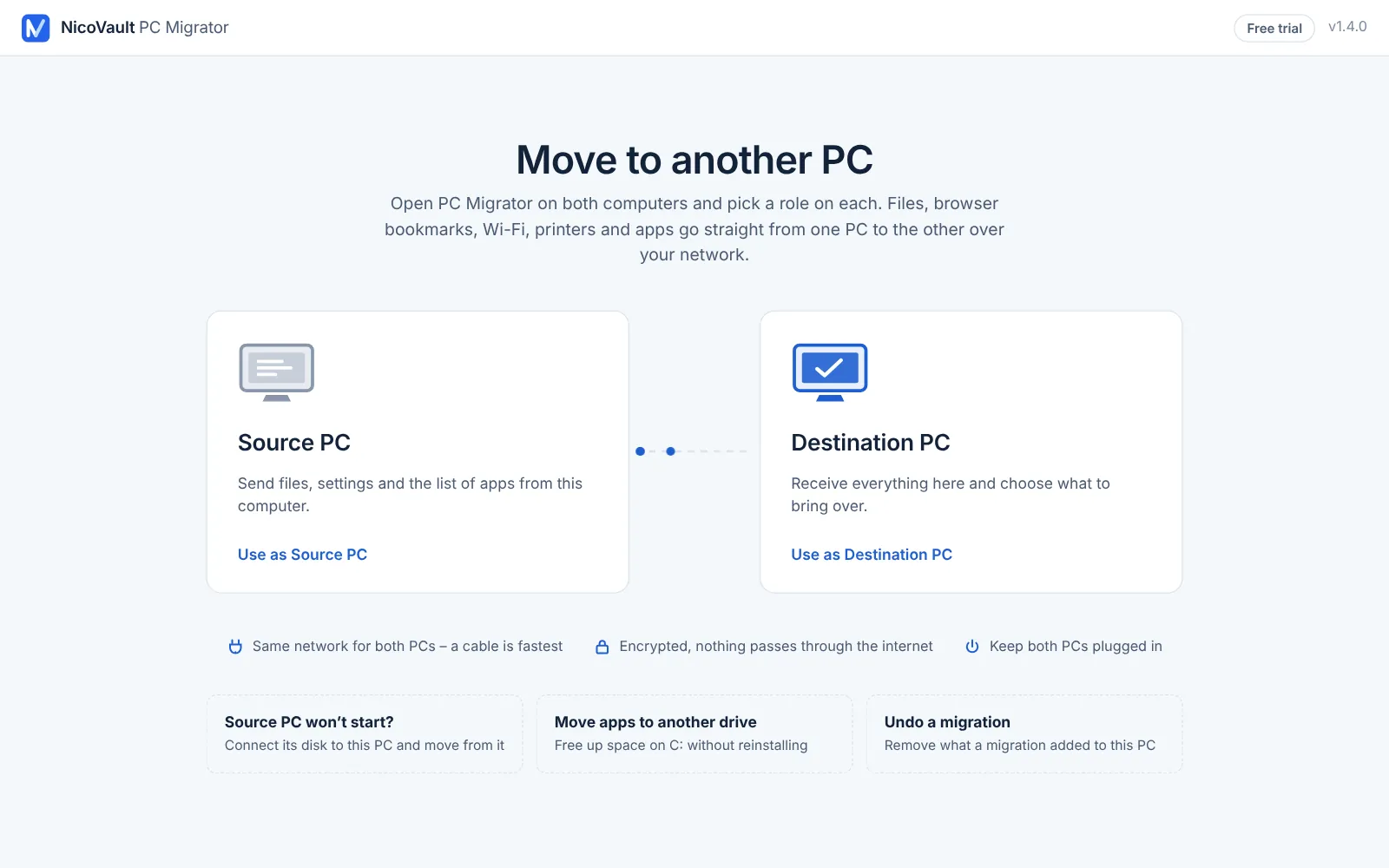
The tedious part of a new PC, done for you.
Copying folders by hand, reinstalling programs one by one, typing Wi-Fi passwords again, adding the printer: PC Migrator does these in one pass, and tells you plainly what it could not do.
Files, where they belong
Each account’s Desktop, Documents, Downloads, Pictures, Music and Videos go to the account you choose on the new PC – an existing one or a new one – with their folders and dates. Folders from D: or other drives go where you say.
Apps installed again, not copied
The apps you tick are installed on the new PC with Windows Package Manager (winget), from their publishers’ sources, while the files copy. Settings come along for the apps the program knows. The rest are listed to install by hand.
Browsers and passwords
Bookmarks and profiles from Chrome, Edge and Firefox. Saved passwords travel through the browser’s own export, which the program guides you through and cleans up after; Windows saved sign-ins through Windows’ own backup.
Wi-Fi, printers, the small things
Wi-Fi networks with their passwords, printers with their drivers, mapped network drives, wallpaper, regional settings and fonts – the things you only notice when they are missing.
Three ways to connect
Over your network, cable or Wi-Fi; with a cable straight between the two PCs, which the program picks by itself when it is faster; or without the old PC running – from its disk, or from a folder saved on a USB drive or a NAS.
Undo a migration
Every migration keeps a record of what it added to the new PC. Undo removes the files, apps, settings and accounts it created, and leaves alone anything you changed afterwards.
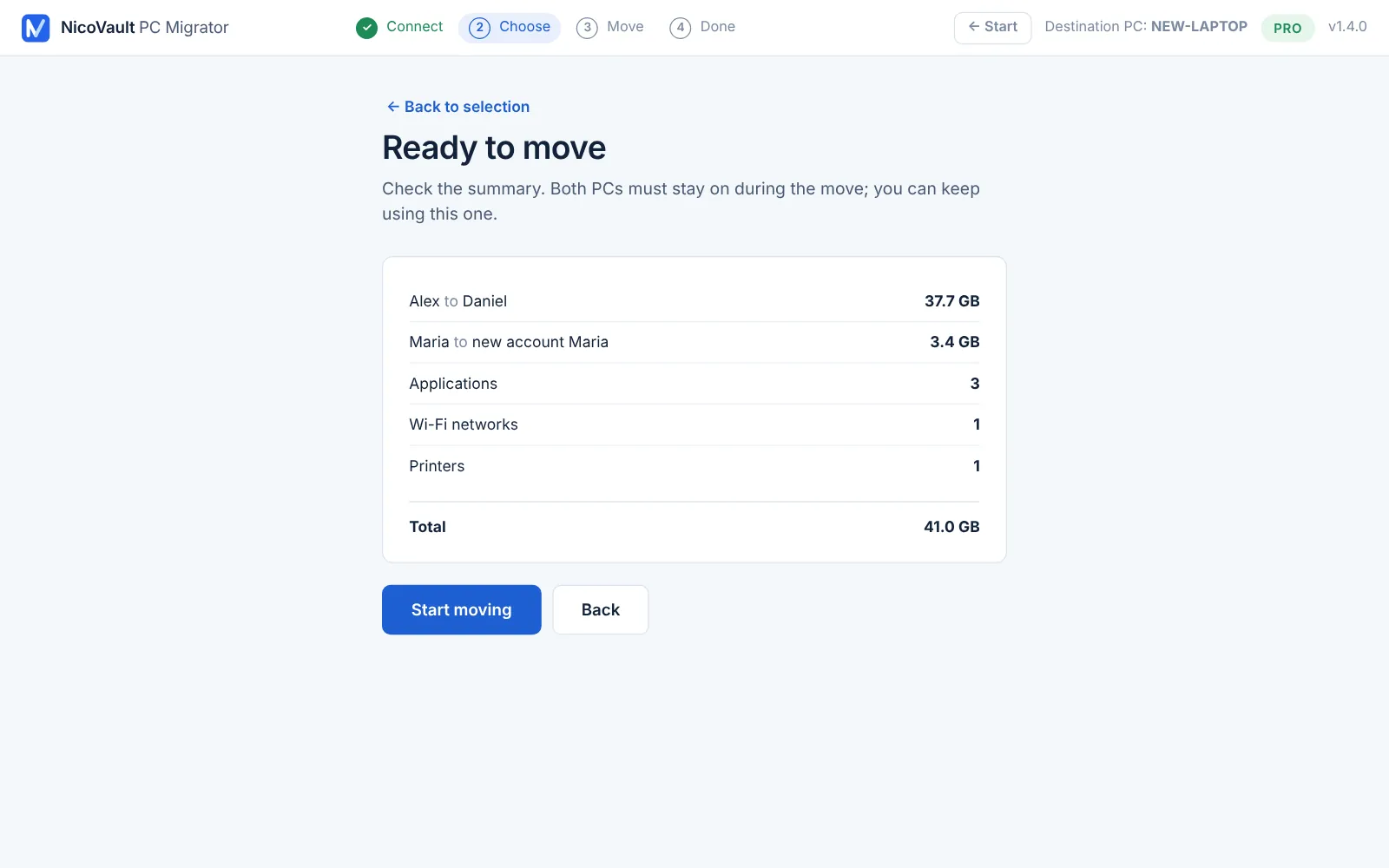
See exactly what will move.
The review lists every account and where it goes, the apps, networks and printers, and the total size against the free space on the new PC. The free trial shows this whole list too. Nothing is written until you press Start.
- Each old account goes to the account you choose, or to a new one
- A warning when there is not enough space, before anything is copied
- Back to the selection keeps every choice
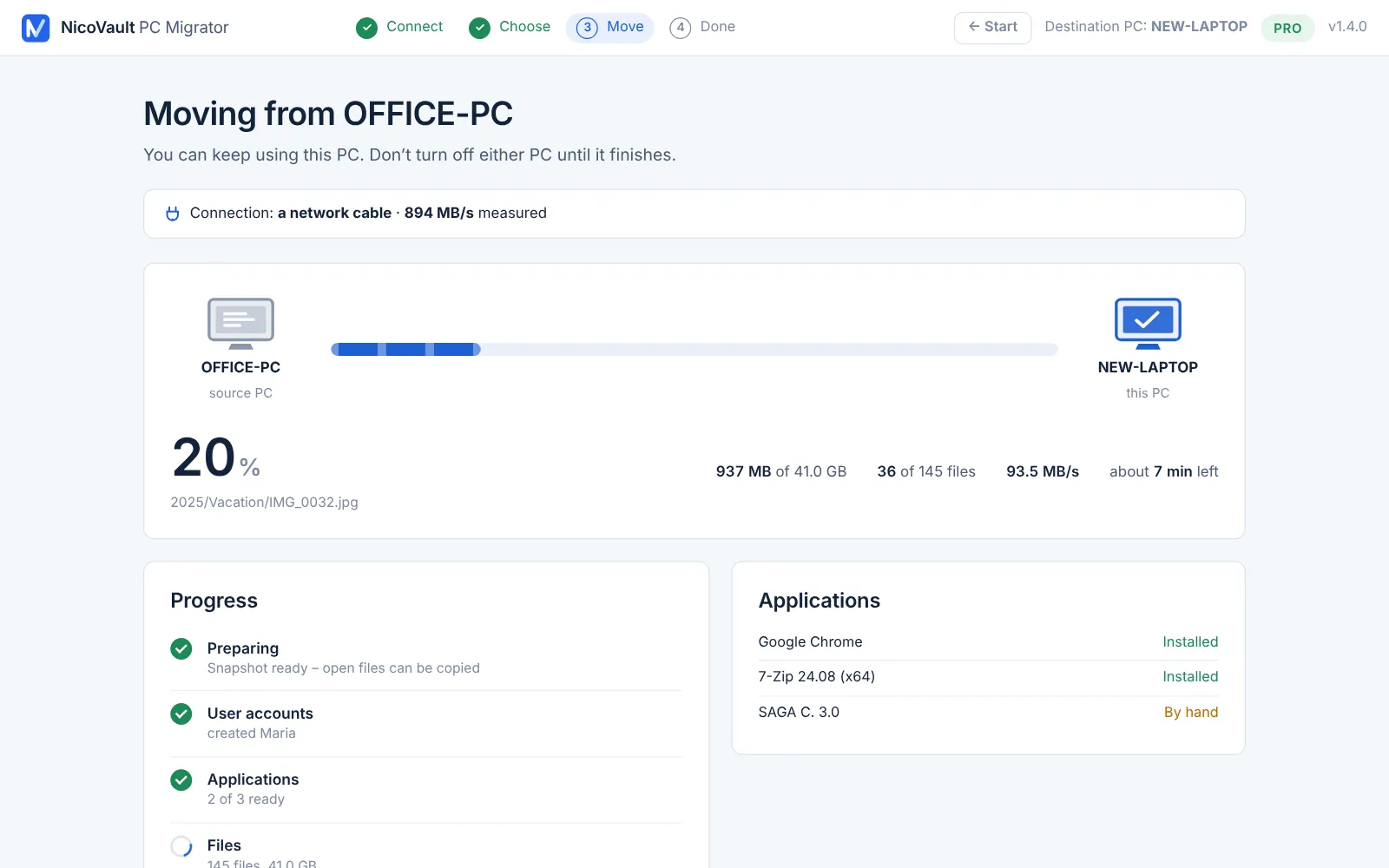
Keep using the new PC while it fills up.
Files copy at the speed of your network while the apps install in the background. You see the speed, the time left and each step. Files open on the old PC are copied too, from a snapshot.
- A dropped connection reconnects and continues by itself
- Stopped halfway? Run it again: what is already copied is skipped
- A report on the desktop: what moved, what failed, what is left to do
What moves cleanly – and what you will still do by hand.
No tool moves a whole Windows from one PC to another without loose ends. Here is the honest picture, so you know before you start.
Files, bookmarks, Wi-Fi, printers, mapped drives
Your folders arrive as they were, with dates. Bookmarks are merged with what the new PC already has. Wi-Fi networks connect without typing the password again.
Applications
Common apps (browsers, 7-Zip, Office tools and many more) are installed again automatically. Programs with their own installers – accounting, industry software, old versions – are listed “By hand”. Paid programs may ask to be activated again.
Windows itself, drivers, activations
The new PC keeps its own Windows and drivers. Activations and licenses of other software stay tied to the old PC or to your accounts with their makers. Saved browser passwords move only through the browser’s export, with your help.
Try a real migration for free. Pay once for everything.
The license is needed only on the new PC – the one that receives the data. The old PC never needs one. Prices in euro.
Free trial
To see it work between your PCs.
- Full scan of the old PC, apps and files
- Complete preview of everything that can move
- Moves up to 1 GB of files and 3 apps
- No time limit, full transfer speed
- More than that needs PRO
PRO
The whole move, no limits.
- Unlimited files and apps, any size
- Pay once: no subscription
- Activated on the new PC; the old PC needs no license
- Move it to another PC whenever you need: remove, then activate
- The key arrives by e-mail in minutes
PRO: pay once and use it with no limits, on one PC at a time; to use it on another PC, remove the license from the first one (License → Remove from this computer) and activate it there – right away. The free trial is counted per computer on our license server, so it needs the internet on the new PC and reinstalling does not restart it. The key is separate from NicoVault Backup, Disk Cloner and File Recovery licenses. If PRO cannot complete the migration between your PCs and we can't solve it together, you get your money back within 14 days (refund policy).
Frequently asked questions
What exactly moves to the new PC?
The user accounts you choose with their folders (Desktop, Documents, Downloads, Pictures, Music, Videos), folders from other drives, browser bookmarks and profiles (Chrome, Edge, Firefox), Wi-Fi networks with their passwords, printers, mapped network drives, wallpaper and regional settings, fonts, the settings of applications the program knows, and the applications themselves – installed again on the new PC. You tick what you want; nothing else is touched.
Are my programs copied as they are?
No, and no honest tool can promise that for every program. PC Migrator installs the applications you tick again on the new PC with Windows Package Manager (winget), from their publishers' sources, and moves the settings of the ones it knows. Programs without an automatic installer are listed “By hand”, with a note, so you install them yourself. Licenses and activations of other software are not transferred; the report shows the Windows and Office keys found on the old PC.
How do the two PCs connect?
Put both on the same network – cable or Wi-Fi – or plug a network cable straight between them. The new PC finds the old one by itself; you type the 6-digit code shown on the old PC. The transfer is encrypted and stays on your local network: nothing passes through the internet. If the old PC no longer starts, connect its disk to the new PC; you can also save the migration to a USB drive or a NAS folder and open it on the new PC.
Does it change or delete anything on the old PC?
No. The old PC (the Source PC) is only read: files are copied, never moved, and nothing is deleted or changed there. Keep it as it is until you have checked the new one.
What does the free trial do?
Everything, on a small scale: it connects the PCs, scans the old one, shows the complete list of what can move, and really moves up to 1 GB of files and 3 applications to the new PC – at full speed, with no time limit. It needs the internet on the new PC, because what the trial has used is kept on our license server, per computer.
On which PC do I enter the license key?
On the new one – the Destination PC, which receives the data: click License (top right) and paste the key. The old PC needs no license; sending from it is always free. Install the program on both.
Can I use the license for another PC later?
Yes. The license works on one PC at a time. On the PC where it is active choose License → Remove from this computer, then activate it on the other one – right away, with no waiting period. Both steps need the internet.
What about my saved passwords?
Browsers lock their password stores to the PC, so no program can copy them silently. PC Migrator guides you through the browser's own export in Chrome and Edge: the exported file is carried to the new PC, you import it there, and the file is deleted. Passwords saved in Windows Credential Manager are moved with Windows' own backup and restore, also guided. Wi-Fi passwords move with their networks.
What if something goes wrong, or I change my mind?
If the connection drops, the program reconnects and continues; if you stop it, running it again skips what is already copied. Every migration keeps a record, and “Undo a migration” removes what it added to the new PC – files, apps, settings, created accounts – leaving alone what you changed since. The old PC was never changed.
Can I get my money back?
The free trial runs a real migration between your own PCs, so you know it works before you buy. If PRO still cannot complete the migration and we can't solve it together, write to us within 14 days of purchase and you get the money back. After a completed migration with the license, the purchase is final. See the refund policy.
Windows says “Windows protected your PC”. Is it safe?
Yes. The installer is digitally signed with a Certum code-signing certificate (publisher: Geanina-Elena Sava-Mimbler). Because the program is new, SmartScreen may still warn about it for a while: click More info → Run anyway.
Free to download. Install it on both PCs.
An ordinary Windows setup, the same on the old PC and on the new one. Scanning, the full preview and the trial are free; enter a license key on the new PC when you want to move everything.
Signed installer. Setup installs PC Migrator to C:\Program Files\NicoVault\PC Migrator and adds Start menu and desktop shortcuts. It adds one Windows Firewall rule, “NicoVault PC Migrator”, so the two PCs can find each other and transfer on your local network: while the program is open it uses UDP port 47811 (finding the other PC) and, on the Source PC, TCP port 47812 (the encrypted transfer) – on the local network only, nothing is opened to the internet. Only if it is missing, setup adds the free Microsoft Edge WebView2 Runtime from Microsoft, which draws the window. No Windows services, no scheduled tasks, no drivers, no startup entries: the program runs only when you open it, and asks for administrator rights (to read every user’s files and to install apps). It only reads from the Source PC and deletes nothing there. On the Destination PC it writes only what you ticked, after you review the list and press Start: files, settings, and the apps you chose, installed with Windows Package Manager (winget). It contacts nicovault.com only for the license and the free trial, on the Destination PC. Nothing else: no other software, no ads. Uninstall anytime: Windows Settings → Apps → Installed apps → NicoVault PC Migrator – this removes the program, the shortcuts and the firewall rule; logs, reports and undo records stay in C:\ProgramData\NicoVault\PC Migrator until you delete that folder. · Terms · Privacy
| System | Windows 10 / 11 (64-bit) |
| Connection | Both PCs on the same network (cable or Wi-Fi) or a network cable between them – or the old PC’s disk, a USB drive or a NAS folder |
| Free space | On the new PC: the size of what you move, plus 2 GB |
| Size | ≈ 7.5 MB |
| Version | 1.4.0 · 11.11.2026 |
| SHA-256 |
The installer is digitally signed (Certum certificate, publisher: Geanina-Elena Sava-Mimbler). Windows may still show “Windows protected your PC” for a while: click More info → Run anyway. Installation guide